Typesy is built by people who believe in better typing instruction. Engineers, teachers, curriculum experts, psychologists, and designers work together to create a platform that helps every student find confidence at the keyboard. Here’s what’s new:
What’s New?
Design Update: Course Runner
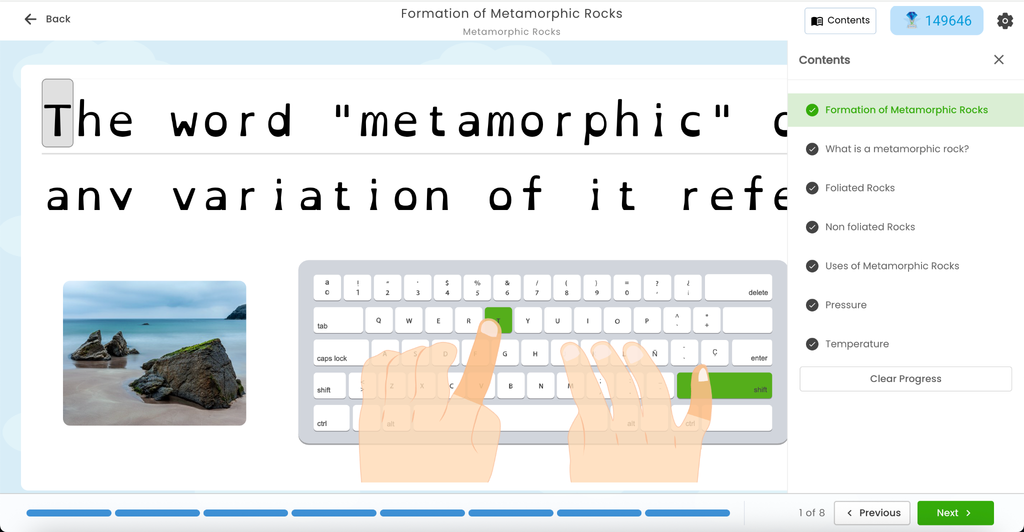
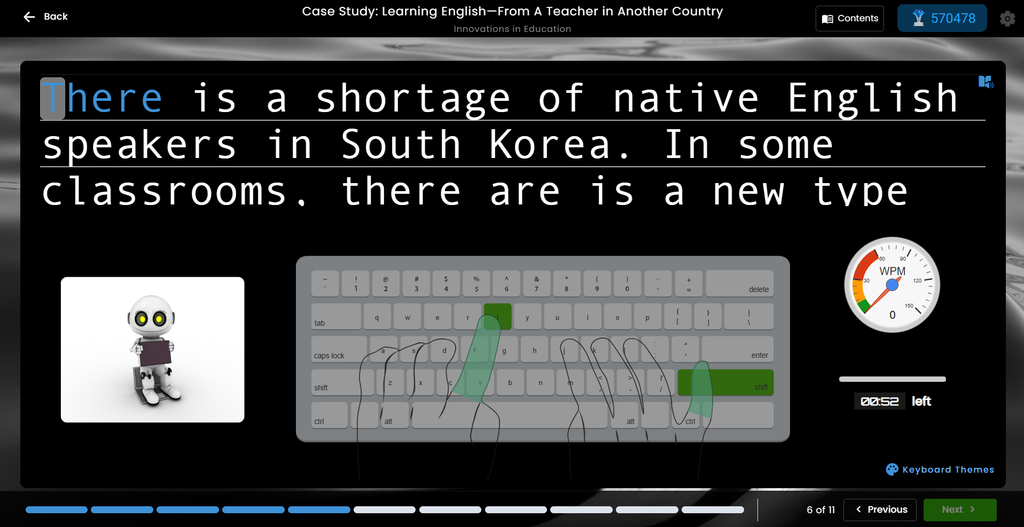
This is the new Course Runner design:
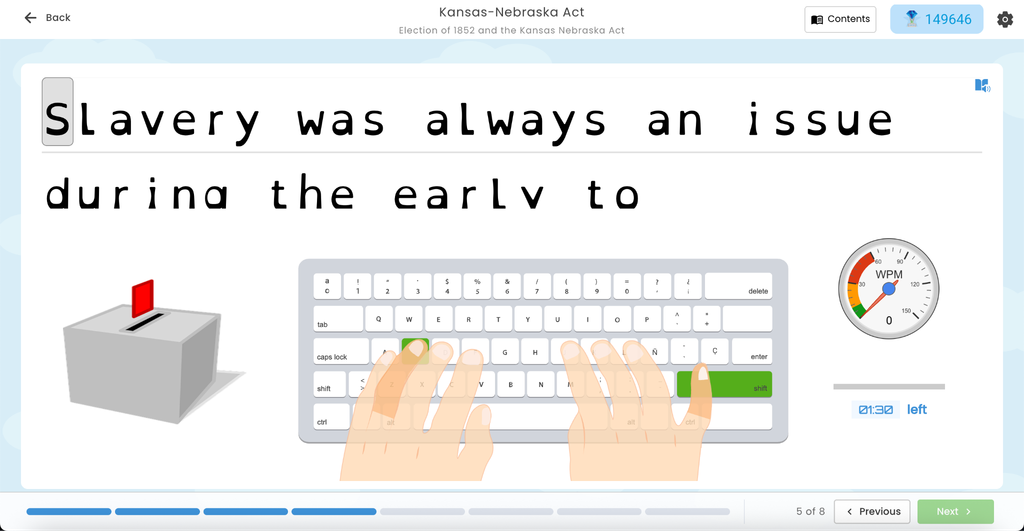
- The settings toolbar is now a drop-down located beside the eReflect points, keeping the interface cleaner and less cluttered.
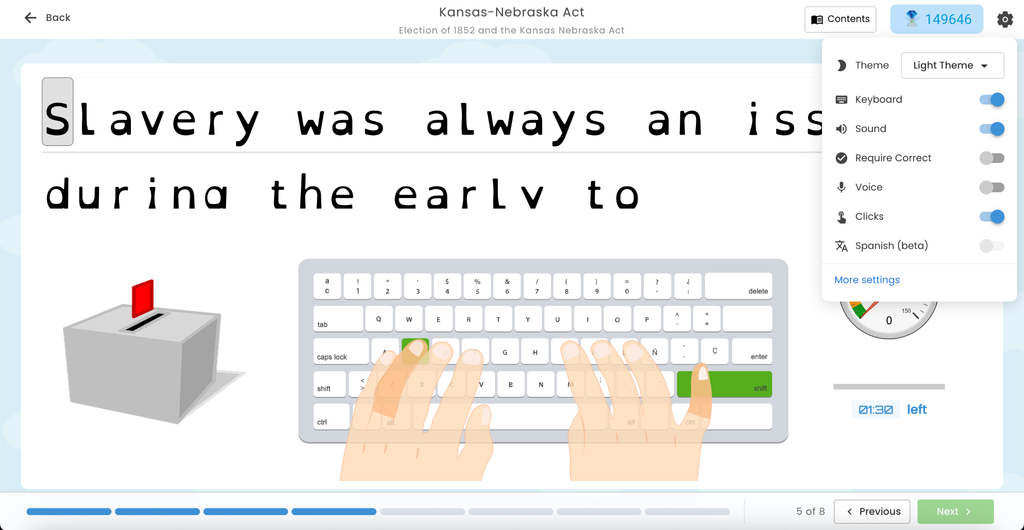
- The Contents button is now displayed with the user progress (checked for finished and locked with unfinished course activity), so students can instantly see which lessons are done and which are still ahead.
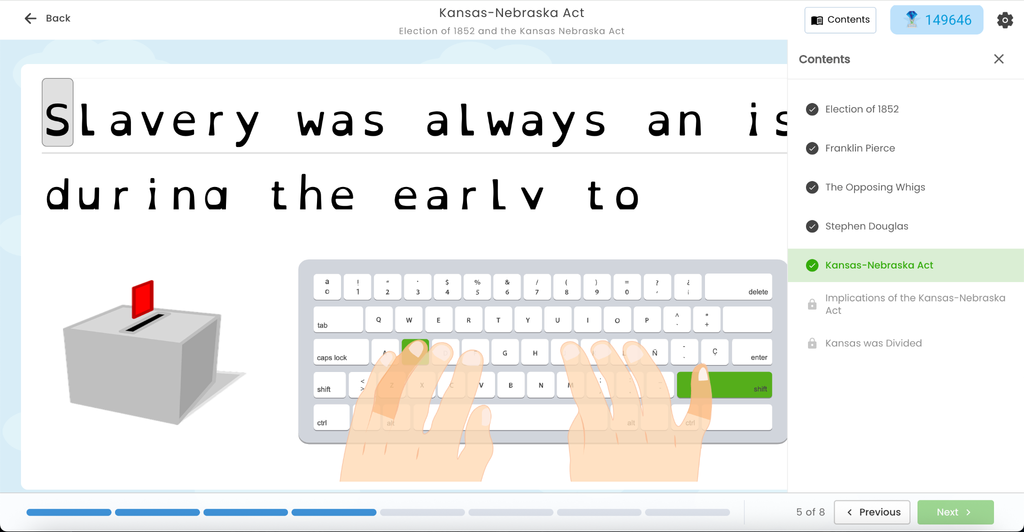
- If the course is completed then all items will be checked in the Contents, giving students a clear sense of accomplishment when they finish.
This feature applies to all Typesy accounts.
Design Update: Game Intro Screen
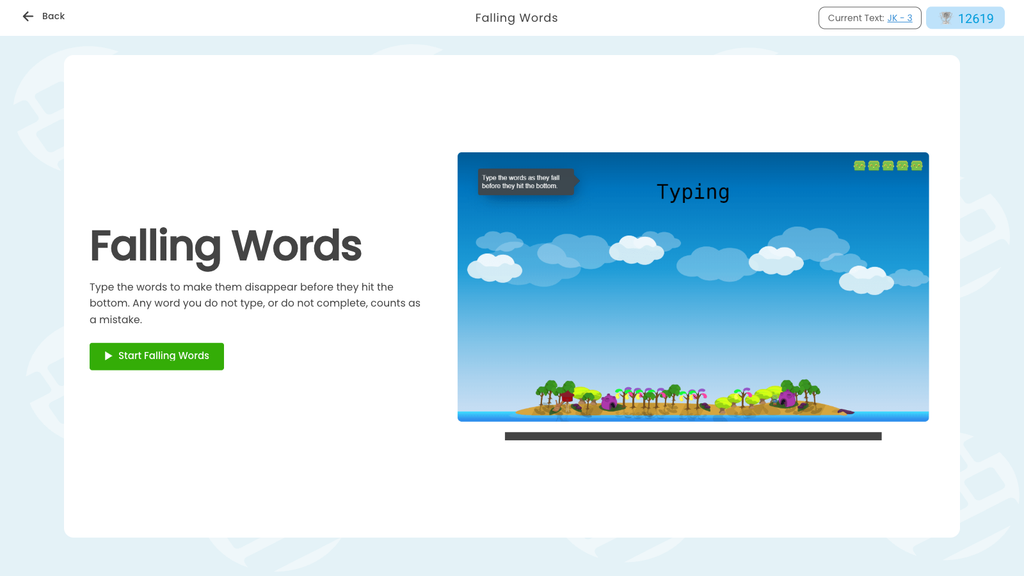
The intro screen shown before playing a typing game or activity has a refreshed design:
- The game name, a short description of how to play, and a green Start button now sit on the left, with a large preview of the game on the right, so students can see what they are about to play before they begin.
- On shorter screens the card scrolls, so the Start button is never cut off and remains accessible to students.
This feature applies to all Typesy accounts.
Interface Update: Curriculum and Course Screen Cards
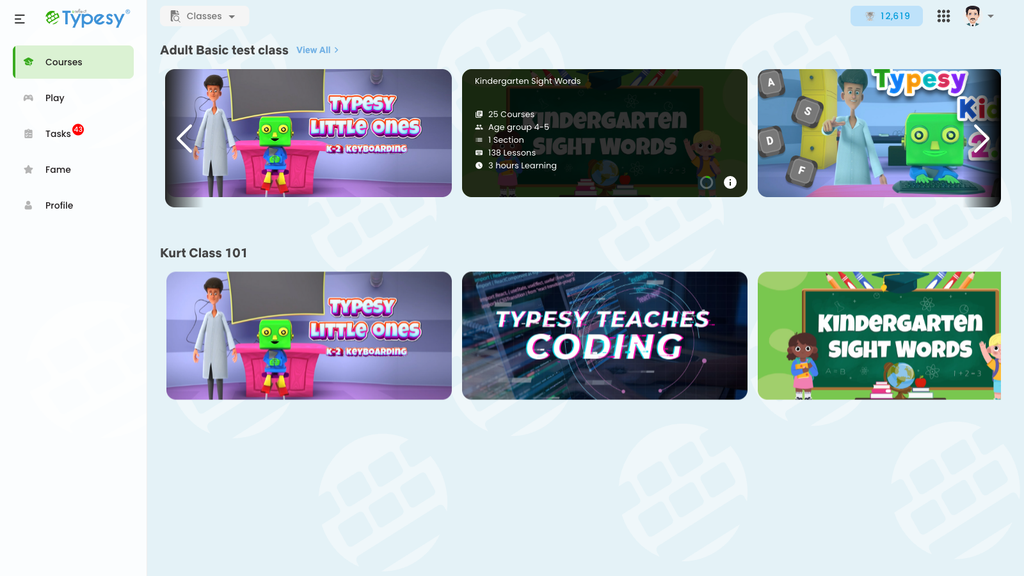
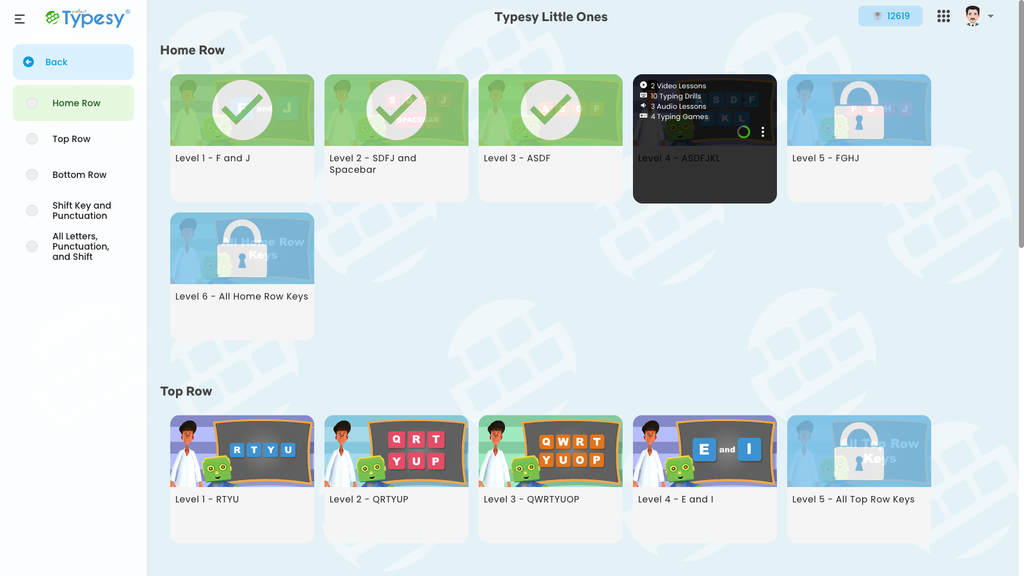
The curriculum and course cards have a new, cleaner design for students. Cards no longer show action buttons on hover. Instead, clicking anywhere on a curriculum card opens it, and clicking a course card starts the course, making navigation more intuitive.
- Hovering a curriculum card shows its details at a glance: number of courses, age group, sections, lessons, and estimated learning time, along with a circular progress ring and an info button, so students know exactly what they’re getting into.
- Hovering a course card shows what is inside (video lessons, typing drills, audio lessons, typing games), with the progress ring and a 3-dot menu for clearing progress, giving students control over their learning journey.
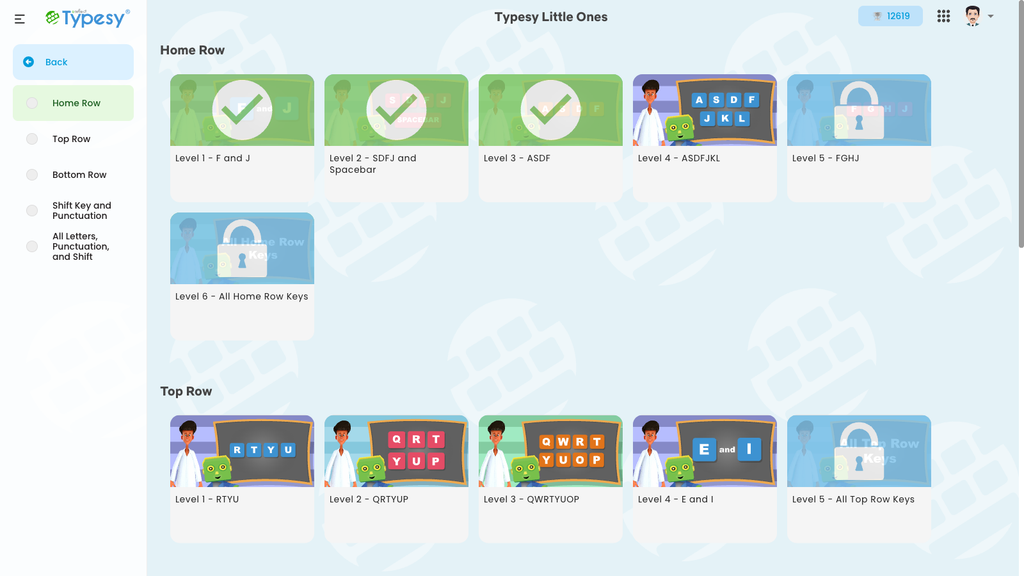
- Inside a curriculum, the sections are now listed in a left-side menu. Each section gets a check-mark when completed, the active section is highlighted, and the menu follows along as you scroll, making it easy to track progress and navigate between lessons.
This feature applies to all Typesy accounts.
Feature Update: Chromebook Keyboard Detection
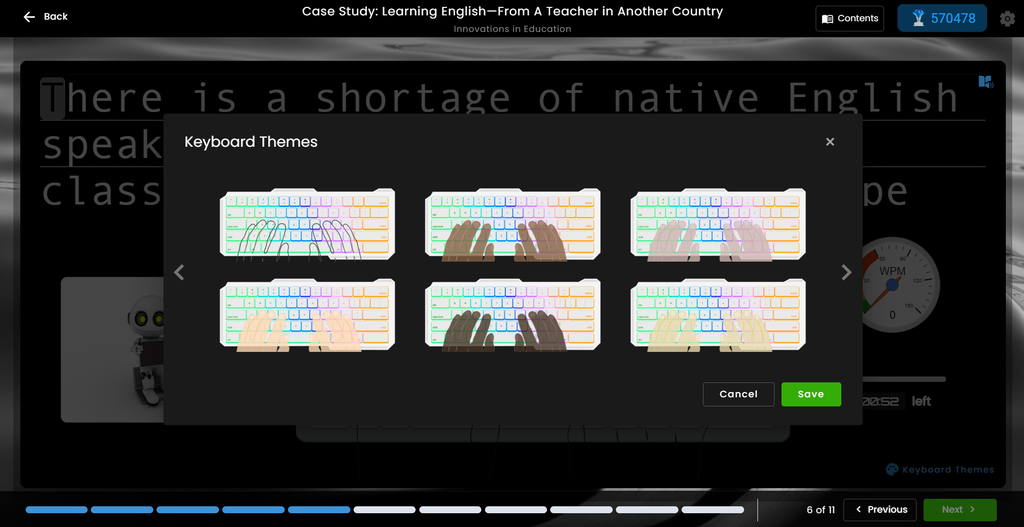
Chromebook keyboards are different from standard keyboards: their physical keys are printed with lowercase letters. Typesy’s on-screen keyboard always displayed uppercase letters, creating a mismatch between the screen and the keyboard under students’ fingers.
- Typesy now detects when it is running on a Chromebook and shows lowercase key labels to match, so what students see on screen matches what they feel under their hands.
- This includes support for Spanish, Brazilian, and Canadian multilingual keyboard layouts, ensuring all Chromebook users have an accurate on-screen experience.
This removes confusion and helps students focus on learning to type, not decoding mismatched key labels.
This feature applies to all Typesy accounts.
New Theme: High Contrast
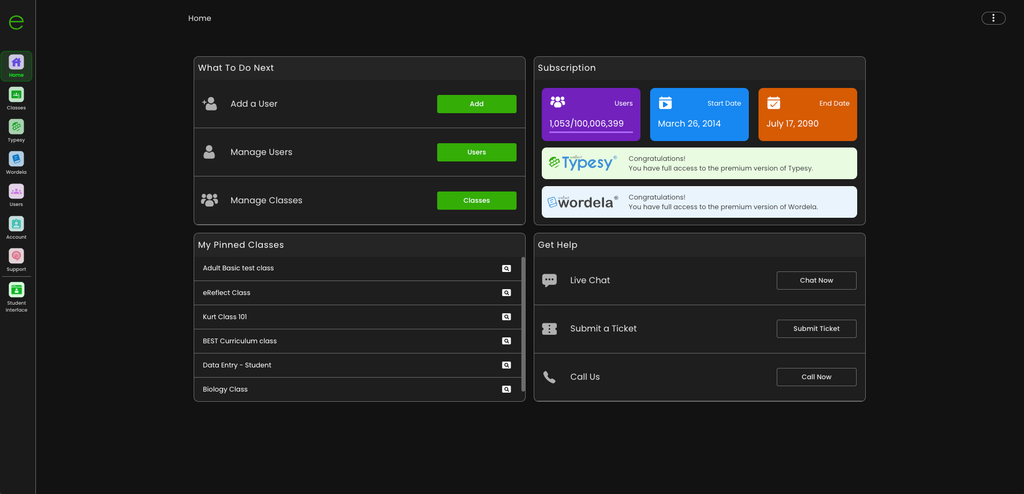
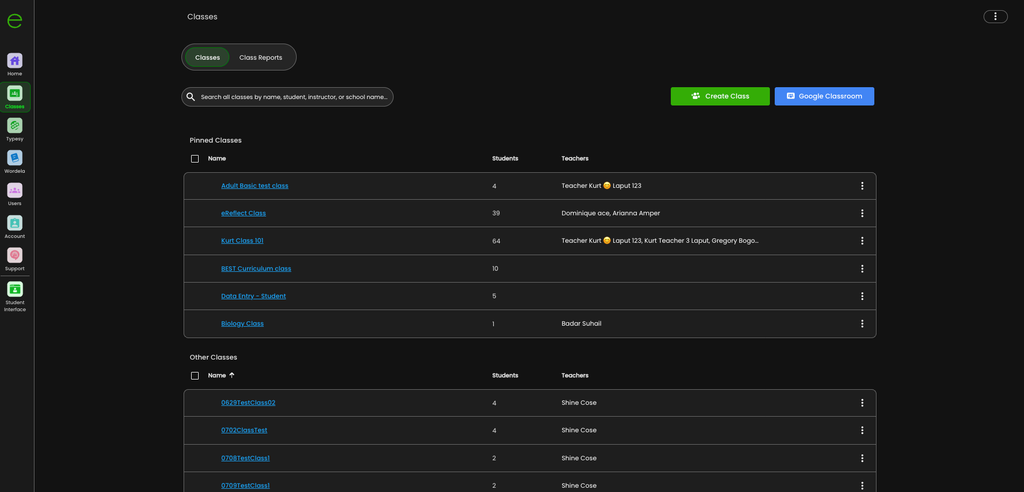
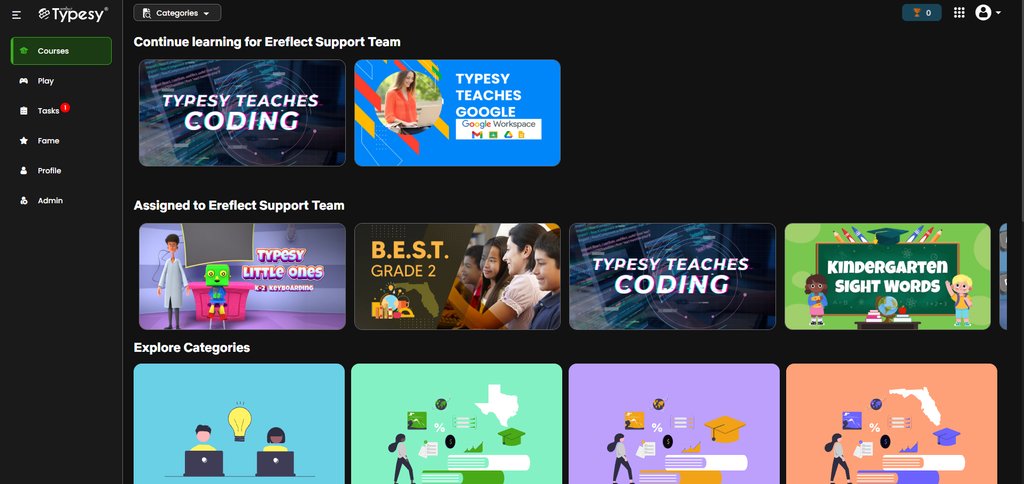
A new High Contrast theme has been added as a fourth theme option in the admin and student interfaces. The theme features high-visibility styling across the app shell, Home, classes, reports, and dialogs, making the platform accessible for students with low vision. Theme switching happens instantly with smooth transitions and no flashing or reloading of styles, so students can customize their experience without disruption.
For student interface:
Looking Ahead
Every update to Typesy starts with the same question: how can typing instruction be more engaging and how can students build real confidence at the keyboard? This August, the answer comes in the form of clearer course navigation, smarter keyboard detection, and a more polished learning experience—all designed to help teachers teach effectively and give students the tools to type with confidence.
There’s more in the pipeline. As feedback continues to shape the road map, Typesy remains committed to building a platform where typing mastery feels achievable, supported, and rewarding—for every type of learner, in every kind of classroom.